

Buying a professional camera is a big decision, and buying one second-hand makes it trickier. Before you hand over any money, there’s one number you should know: the shutter count. If you already own the camera, it’s still worth checking, because it tells you roughly how much life the camera has left.
Panasonic doesn’t put this number in the regular menus, so you have to go through a hidden Service Mode. The button combinations are fiddly, but with a little practice you’ll get it. Follow the steps in order.
Why Shutter Count Matters
Think of the shutter as the engine of a car. It’s a mechanical part, it wears out with use, and it’s the component most likely to fail. Replacing it is expensive, and a worn shutter can cancel out the savings of a cheap second-hand price.
Most other parts of a camera will last a long time if they survive the first few months. The shutter is different: it has a limited number of cycles before it fails. Entry-level DSLRs are typically rated for around 50,000 actuations, while professional bodies are rated for 50,000 to 100,000 or more. Plenty of cameras keep working well past their rating, sometimes by another 50,000 or even 100,000 shots. Still, when you’re buying used, it’s safest to assume the rated number is the limit.
Steps to Check the Shutter Count on the Lumix S1, S1R, S1H, and S5
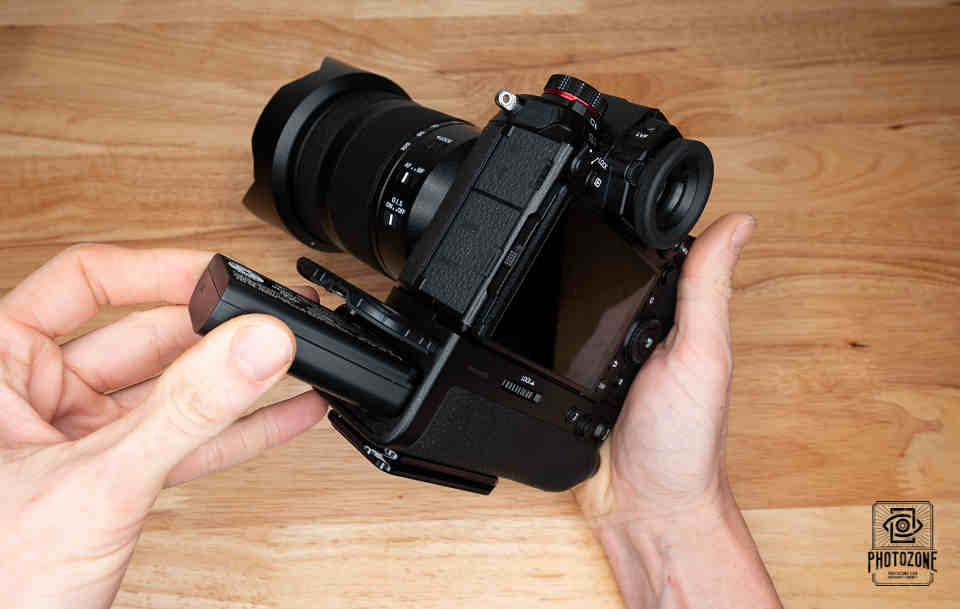
Step 1 – Battery
Start with a fully charged battery. You don’t want the camera dying while you’re in the middle of this process. Once it’s charged, turn the camera off.
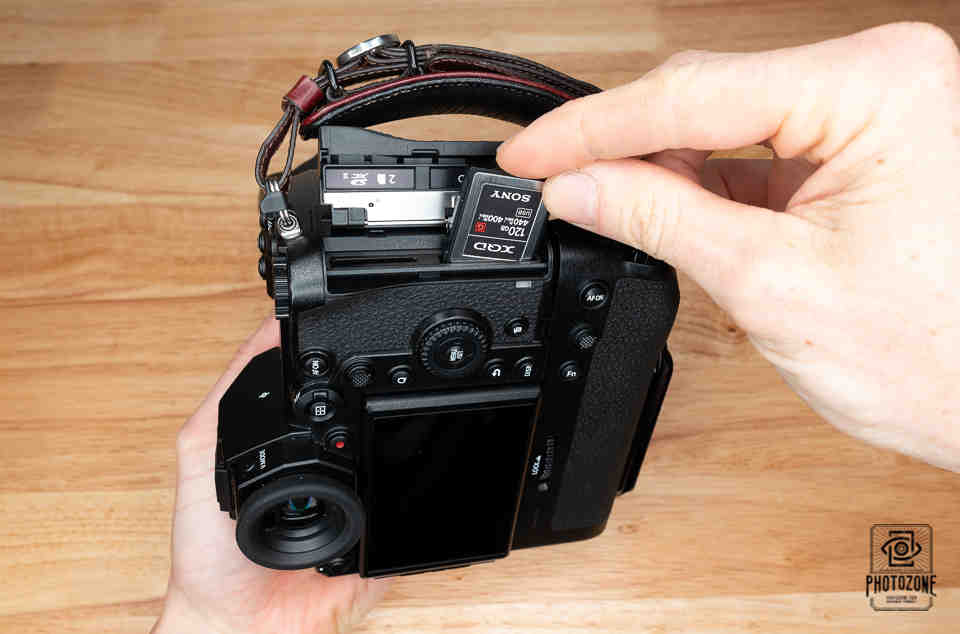
Step 2 – Memory Card
Insert a memory card.
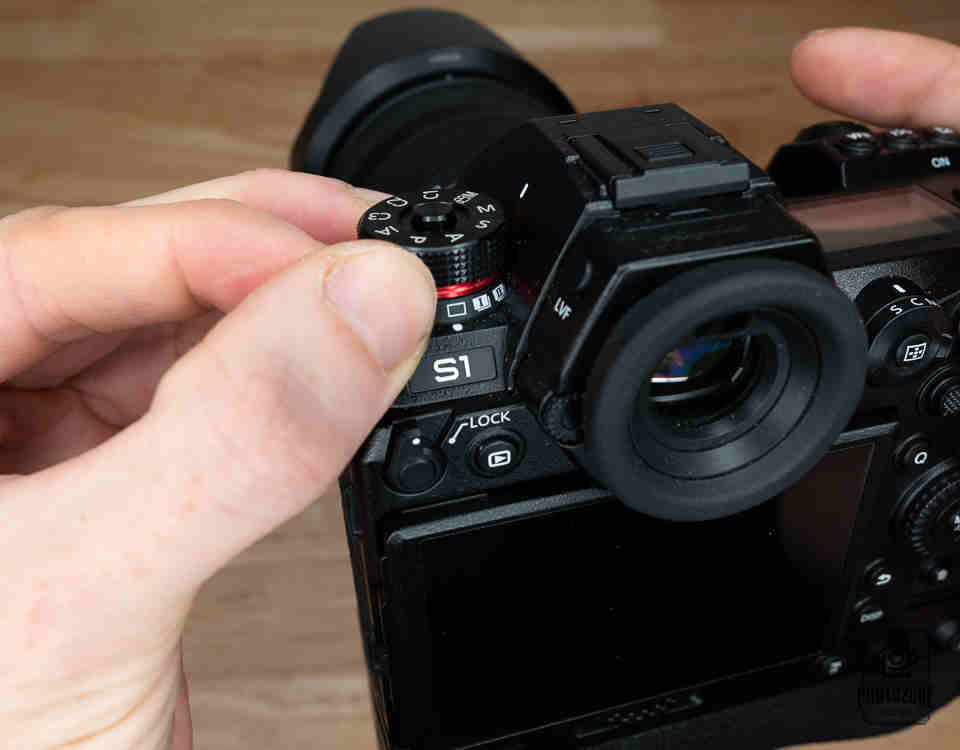
Step 3 – Select the Mode
Set the camera to Single Shot Mode.
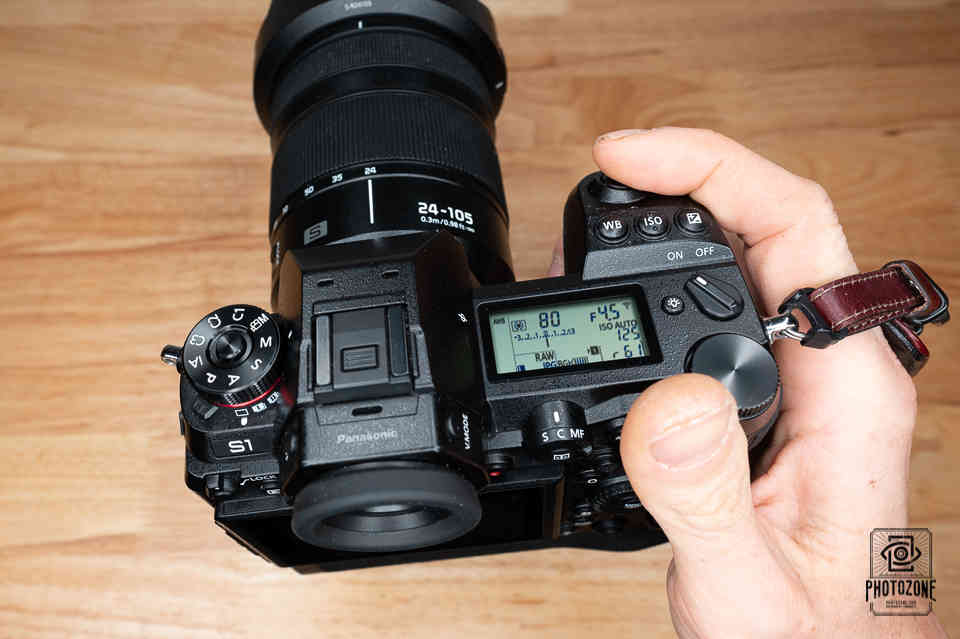
Step 4 – Take One Photo if the Card Is Empty
Turn the camera on. If the card is empty, take one photo. If there are already photos on the card, you can skip this step.
Step 5 – Open Service Mode (Part A)
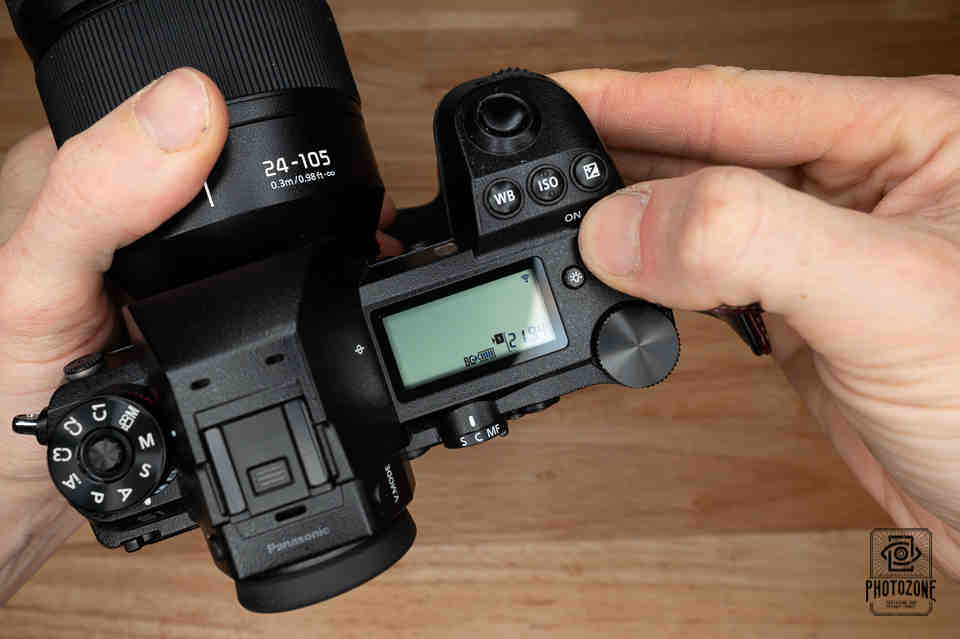
Press and hold the Playback and AF/AE Lock buttons at the same time while you turn the camera on. This puts you in Temporary Service Mode.
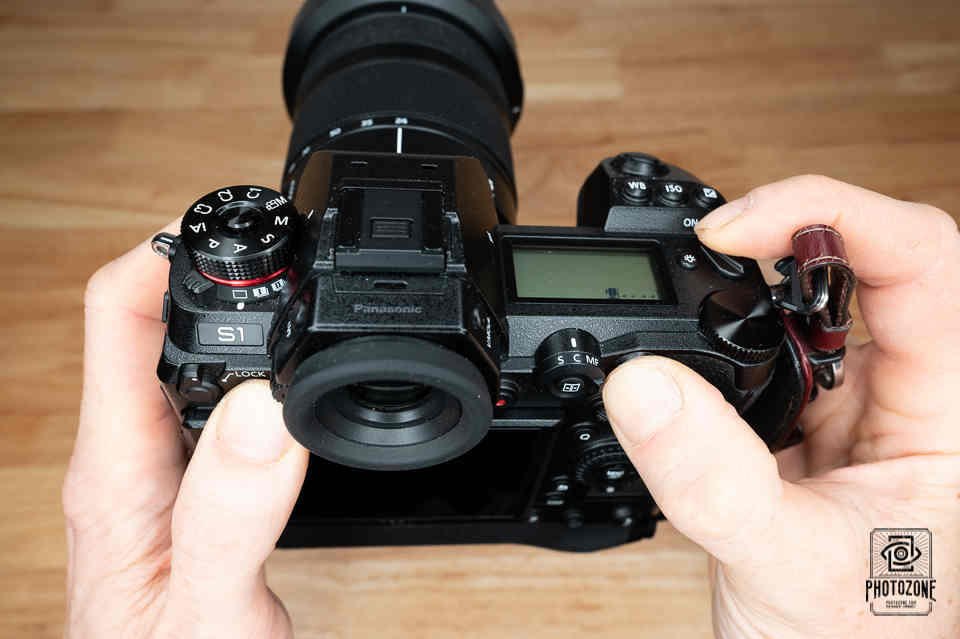
Step 6 – Open Service Mode (Part B)
Now press and hold the Playback button together with the Menu/Set button, then press the Left button on the click wheel. It’s not easy, so don’t be discouraged if it takes a few attempts.
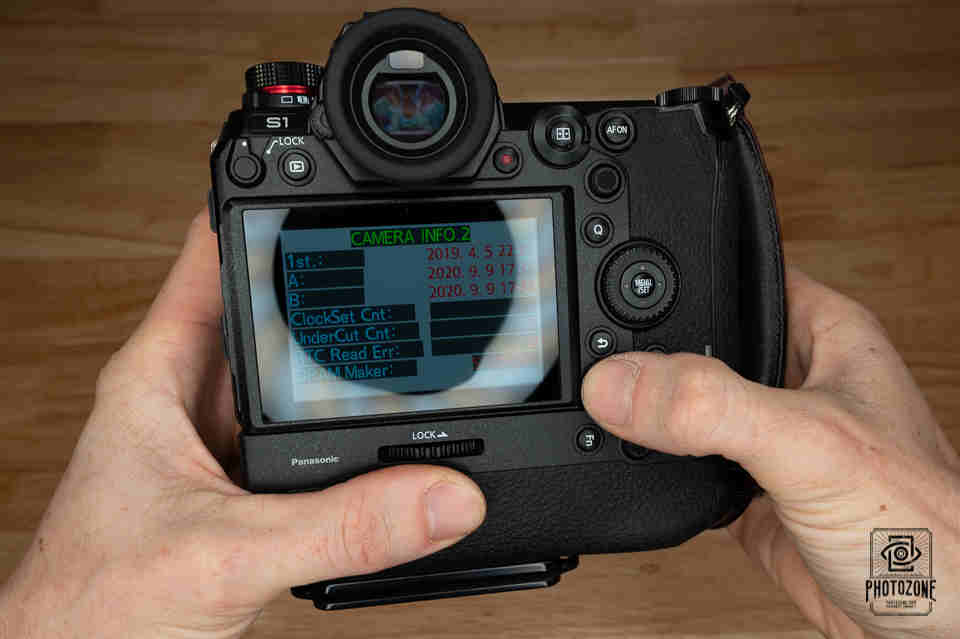
Step 7 – Open Service Mode (Part C)
Press the Left button on the click wheel one more time. You need to repeat this because the first press only shows the last 16 error codes. The second press reveals the information you’re actually looking for.
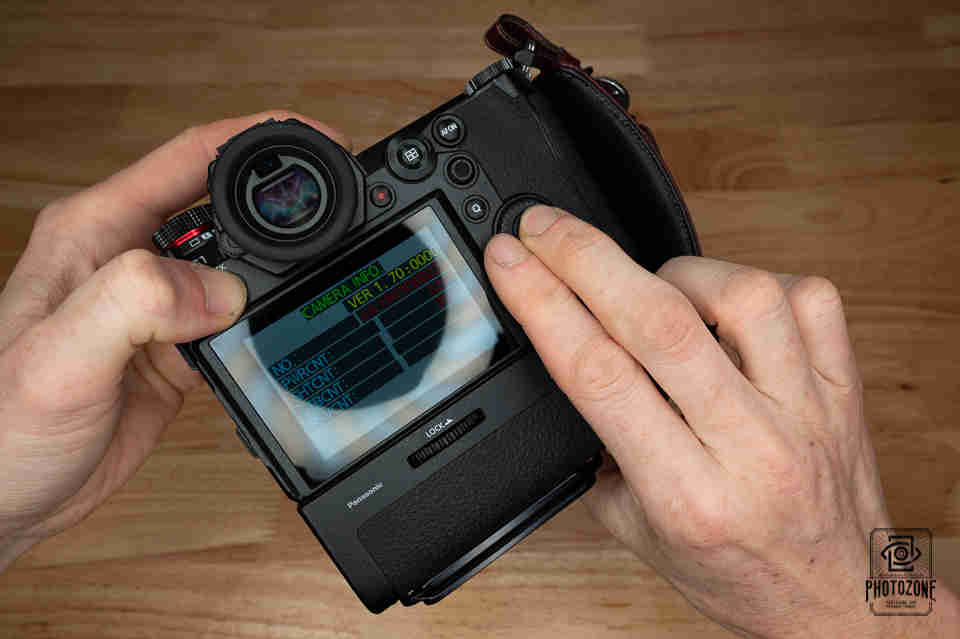
Step 8 – Toggle Between the Menus
Press the Display button to switch between the two menus.
Step 9 – Save the Data
Look for the numbers next to PWRCNT, SHTCNT, STBCNT, and PSVCNT, and write them down. The number next to SHTCNT is your shutter activation count, and the one next to STBCNT shows how many times the flash has been used.
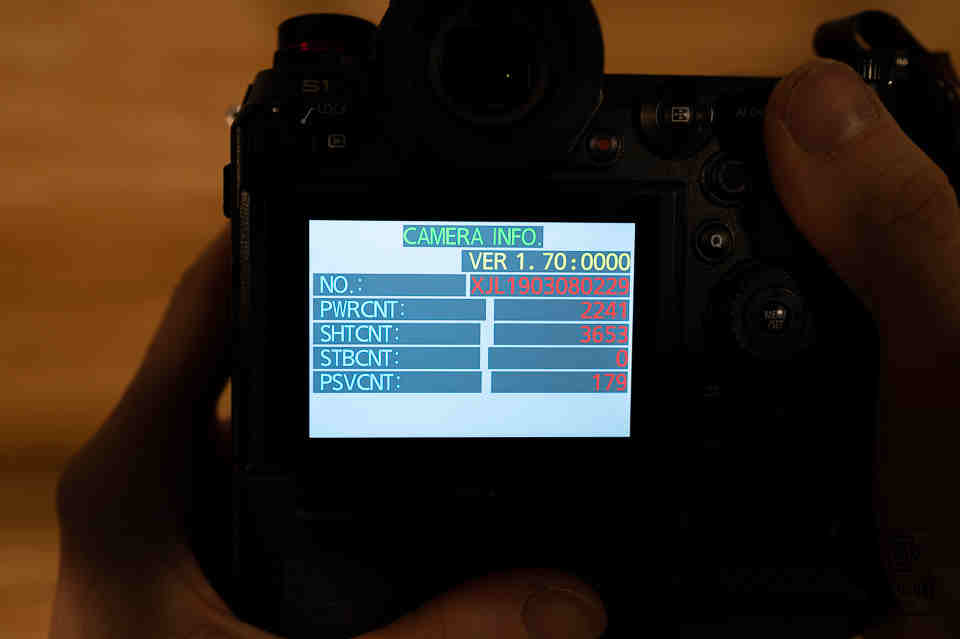
Step 10 – Check Other Data
Pressing Display again shows more details about your camera, such as when it was first started up.
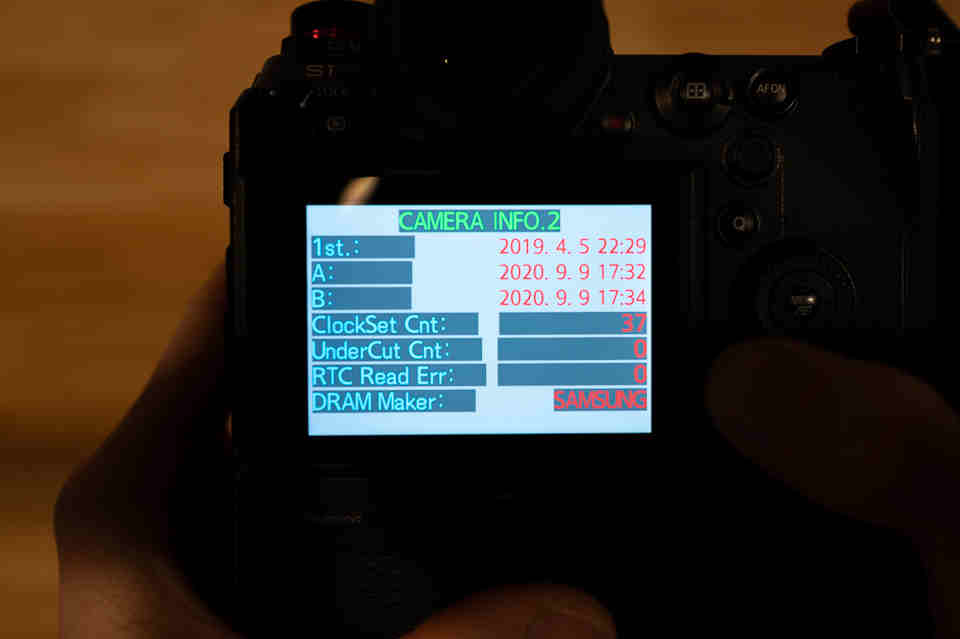
Step 11 – Leave Service Mode
Once you have your numbers, turn the camera off. It will go back to normal operation the next time you power it on.
What Do PWRCNT, SHTCNT, STBCNT, and PSVCNT Mean?
- PWRCNT: how many times the camera has been turned on
- SHTCNT: how many times the shutter has fired (the one that matters most)
- STBCNT: how many times the flash has been used
- PSVCNT: how many times the auto power-off function has been used
Together these show how heavily the camera has been used. SHTCNT is the key figure because it directly reflects wear on the shutter.
What’s a Good Shutter Count for a Used Camera?
There’s no single magic number, because shutter life varies from model to model. A handy rule of thumb is to treat 35 to 50 percent of the camera’s rated shutter life as the upper limit for a used professional camera.
Price matters too. If you’re getting the camera for 60 to 70 percent less than the cost of a new one, you can reasonably accept a count above that range. The cheaper the deal, the more risk you can justify.
Quick FAQ
What is Temporary Service Mode? It’s a hidden mode that shows technical details about your camera, including the shutter count, power-on count, and recent error codes.
What is the Service Menu? It’s the screen within that mode where you can find data like the serial number and firmware version.
Final Thoughts
Checking the shutter count takes just a few minutes and can save you from a costly mistake. Whether you’re inspecting a used camera or checking your own, it’s one of the best ways to know what you’re really getting.